Instructor-led Workshop set-up and Joining Instructions

Welcome!  Our instructor-led workshops combine live teaching and hands-on activities inside the Instructor-Led Portal with exercises and learning materials inside this learning hub. To make sure everything runs smoothly, please take a few minutes to go through the setup steps below. To ensure a smooth start, please complete the following at least 3–4 days before your first session.

Check Your System Setup

Before the workshop begins, we ask that you run a quick system check. This helps confirm that your browser, audio, and connection meet the requirements for the instructor-led classroom.
https://iac.instructorled.training/system-precheck
If anything doesn’t pass, don’t worry — the support team can help you diagnose and fix the issue.
/support
Write your awesome label here.

Browser & Device Requirements

To get the best experience during the workshop, please use one of the following supported browsers:
  • Google Chrome
  • Firefox
  • Microsoft Edge
Safari is not supported, so please switch to one of the browsers above before the first session.

We also strongly recommend using a laptop or desktop computer instead of a phone or tablet. You’ll be switching between the Instructor-Led Portal and the LearnWorlds course throughout the workshop.
We strongly advise using two screens — this makes it much easier to follow the instructor while completing hands-on tasks.

Joining the Instructor-Led Portal

The day the workshop begins, you’ll enter the virtual classroom through the Portal.
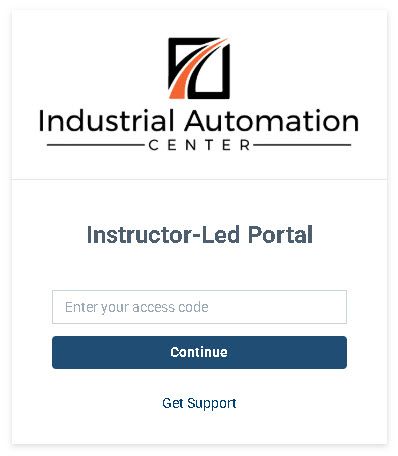
Here’s what the login process looks like:
  • Open the join link provided inside the first course lesson
  • Enter your access code
  • Click Continue to join the session

Access Code

To enter the Instructor-Led Portal, you’ll need a personal access code. This code is unique to you. 
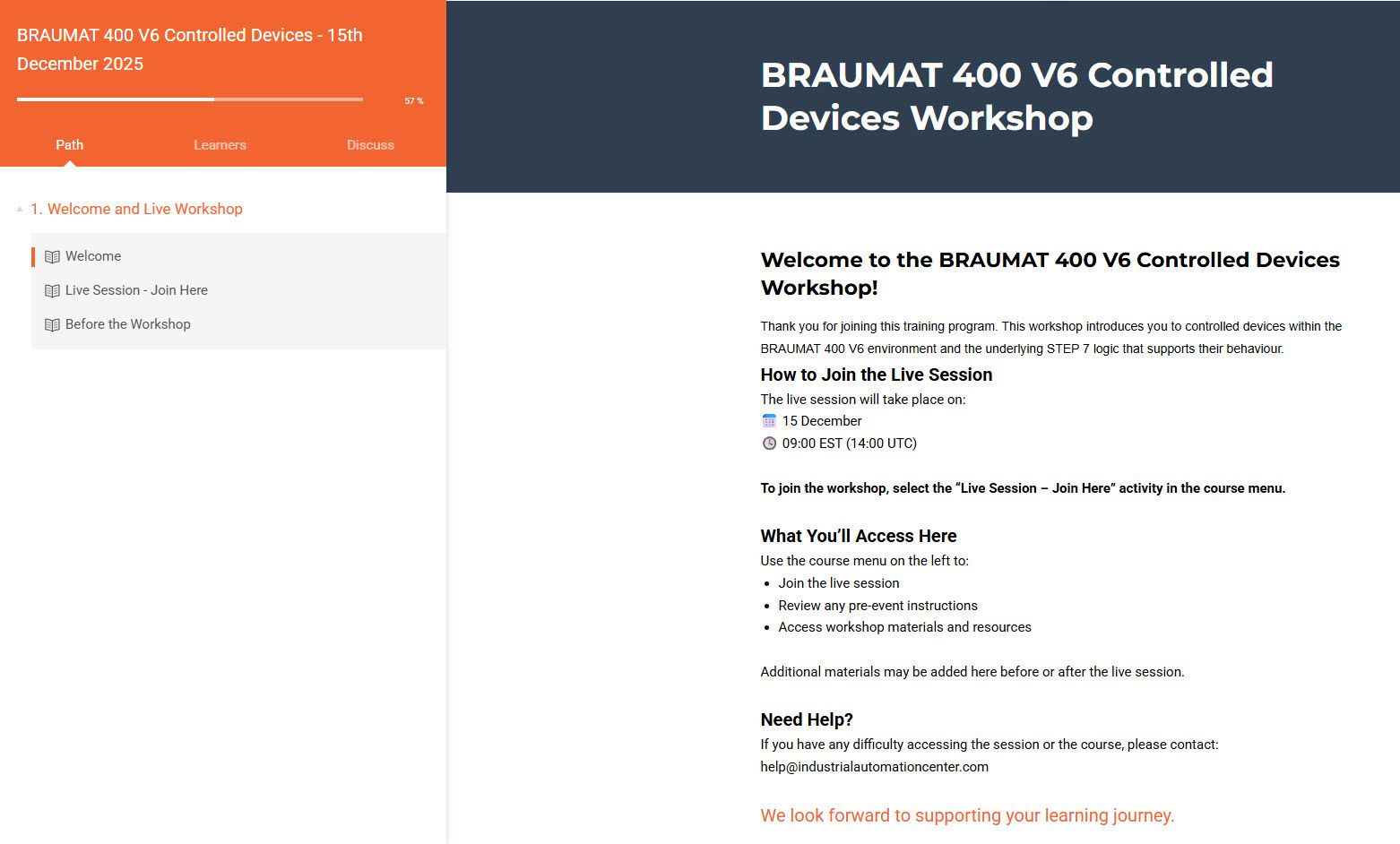
You will find your access code in the LearnWorlds course under the activity:
“Live Workshop – Click to join here”

I
f your
access code is missing or doesn’t work, please contact us immediately so we can resolve it before the workshop begins.

What You’ll Use During the Workshop

This workshop uses two platforms side by side, so, during the course, you will need to keep two windows open (or two screens logged in):

Instructor-Led Portal

This is where you will:
  • Join the live classroom
  • View instructor presentations
  • Launch and run simulator-based exercises
  • Follow demonstrations in real time
  • Interact with the instructor and classmates

Industrial Automation Learning Hub

This is your companion learning environment, where you'll find:
  • Step-by-step instructions
  • Exercises that unlock as the workshop progresses
  • Space to submit certain tasks or complete guided activities
  • Workshop materials
  • Summary sheets
You'll switch between the two throughout each session — this is completely normal and part of the workshop design.

Before the Workshop Begins

To make sure you’re fully prepared:
  • Log in to your IAC Dashboard 
  • Open your Instructor-Led Portal

Check that you can see:
  • Welcome & Instructions
  • Live Workshop – Click to join here
  • Pre-Event Instructions

Verify that your access code appears correctly
Run the system pre-check
Test your audio and internet connection
Join the live session 5 minutes early so everything loads properly

Need Support? We’re Here to Help

If you have any trouble accessing the Instructor-Led Portal, contact:
https://iac.instructorled.training/support

For course-related questions or issues with your LearnWorlds access, email: